Tasketer and Minuttio: field work in the bigger picture
Minuttio’s Tasketer pairing and selected-task transfer implementation is complete for Team and Enterprise, with team-owner approval and permission checks for each transfer. Live availability requires published setup and verification in both tools.
2026-11-14 · Team / Enterprise
Field work is project work
A company’s delivery does not happen only at a desk. Installations, site visits, repairs and practical follow-up are part of the same customer promise as planning and administration. When these tasks sit in a separate tool, managers can miss how much work a project really involves. Field workers can also lose sight of how their contribution fits into the wider plan.
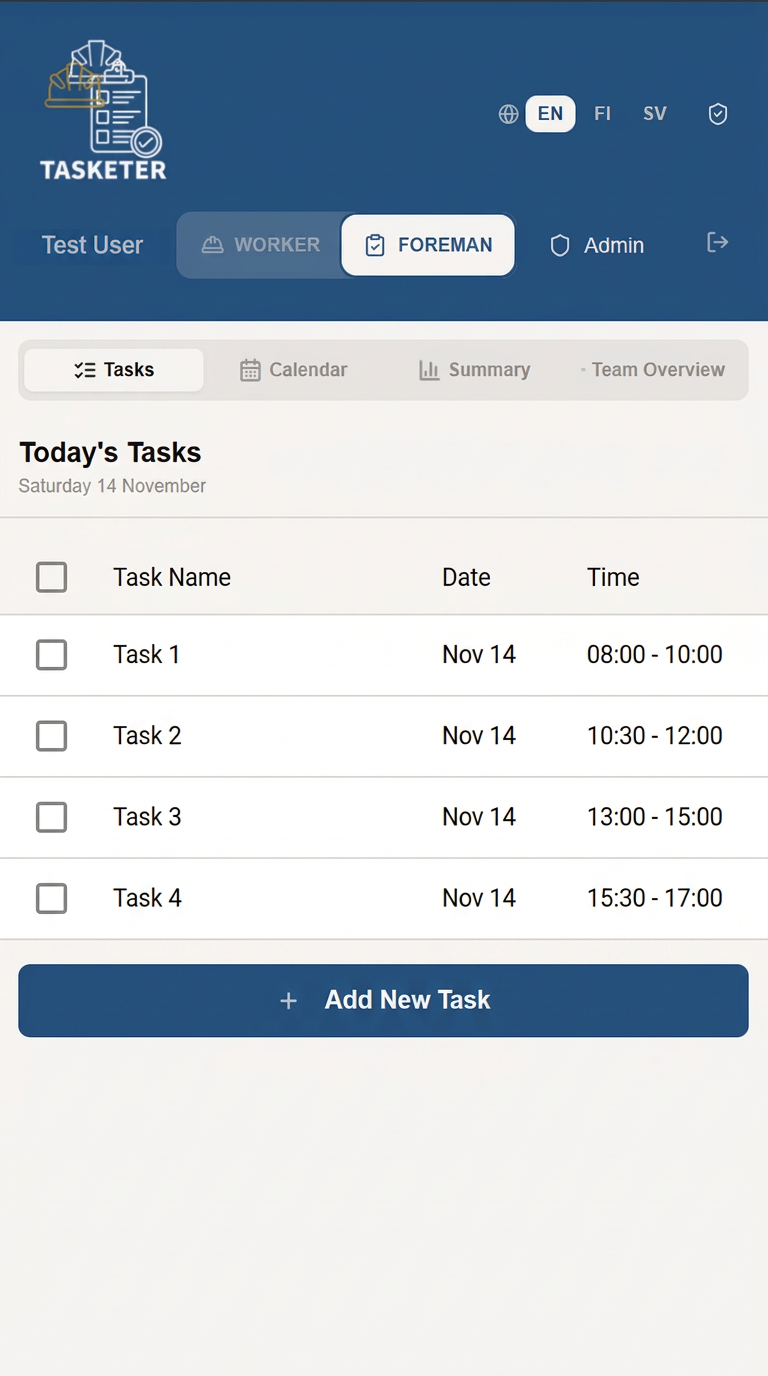
Tasketer focuses on practical assignments for field workers. Minuttio brings tasks, projects, customers, time and profitability together. The implemented integration connects these perspectives without asking everyone to abandon the tool that suits their daily work.
From an assignment to the company’s bigger picture
Once transfers are released, selected Tasketer tasks can be brought into Minuttio. An authorized user can then associate those tasks with the relevant Minuttio project and customer. A site visit becomes visible alongside preparation, coordination and follow-up, instead of remaining an isolated item on a field-work list.
This can help a company plan handovers, identify work that still needs attention and discuss workload using the same project context. Time recorded in Minuttio and its saved customer agreements and internal costs can support existing project reports. Tasketer hours and financial data are not imported in the initial scope, so importing a task does not automatically add work hours, revenue or profit.
A practical example
Imagine a maintenance company preparing a customer project. The office plans the work in Minuttio, while a foreman allocates practical jobs in Tasketer. The implemented transfer flow lets a foreman send a reviewed new Minuttio task to an approved worker, or bring a selected Tasketer job into Minuttio and attach it to the project. Preparation and on-site work can then be considered together. This illustrates the implemented scope, not a customer testimonial or proof of a verified live transfer.
Clear responsibility, not automatic approval
Tasketer workers are Minuttio team members; Tasketer Admin and Foreman may be team leaders through approved membership. These roles do not grant Minuttio platform administrator access. Sending an assignment requires actual foreman authority and an explicitly approved worker. A worker’s completion report remains separate from a supervisor’s acceptance. The initial transfer fields are task name, instructions and an optional calendar date, not photos, location, financials or an automatic completion sync.
Pair Tasketer and verify permissions
Use these steps once live access is released in both tools. A successful readiness check or connected badge does not prove that task transfers work. Disabled transfer buttons mean you must wait for release, not enter API keys or change permissions.
- Confirm readiness with the people managing both tools. Minuttio must be published and Tasketer must use the approved Minuttio connection address, https://minuttio.com/api/public/tasketer/v1. Do not use the old redirecting address. Readiness checks advertise service support only.
- Check both accounts and your team. You and the selected Minuttio team owner need current Team or Enterprise access, and you must be an active member of that team. In Tasketer, workers use their assigned work; sending assignments requires verified Admin or Foreman authority and an approved worker. Pairing never grants new roles or joins a team automatically.
- In your own Tasketer account, create a new Minuttio pairing code. Keep it private. In Minuttio, open Settings → Integrations → Tasketer, select the correct team, paste the code, tick the account-connection consent and choose Request connection. No shared API key is needed.
- Ask the selected team owner to open Tasketer in Minuttio and choose Approve connection for your request. If you are the team owner, your submitted consent approves your own request. The pending request lasts ten minutes; if it expires, request a fresh code and start again.
- In your own Minuttio account, choose Verify connection. Confirm the connected status, then refresh. Every worker and foreman connects their own accounts separately. If verification is ambiguous or fails, disconnect in Tasketer and Minuttio before creating a new code; do not reuse a consumed code.
- Once transfer controls are released, test one non-sensitive task assigned to the worker. Select and import it, then reload Minuttio and check its name, instructions and date. Check Tasketer too: importing must not change worker completion or supervisor approval. Do not expect hours, costs, photos or location to transfer.
- As an authorized foreman, select one new task you own in Minuttio and an explicitly approved worker in the same team. Review the selected details before sending. Reload both tools and confirm the same assignment and recipient. A connected account alone is not permission to send every task.
- Use a dedicated test account to check revoked access. Have the team owner remove its membership or disconnect its pairing, then attempt another import or assignment. The action must be denied without new work. Never revoke a real customer’s access just to test. Subscription expiry is also rechecked, not bypassed by an existing connection.
- If an assignment times out or its result is uncertain, inspect both tools first. Use the provided retry for the same assignment with its original operation key and unchanged details. Never create a new operation to retry: it could duplicate the assignment. Confirm that only one remote task exists.
- Open Tasketer authorization history to review pairing approvals, permission changes and transfer outcomes. Search by the known authorizer, task or operation ID and confirm the timestamp and recorded outcome. A requested or authorized event is not a verified delivery; an unrecorded identity must not be assumed to be a person.
Troubleshoot Tasketer 401 errors
A 401 means the request was not authorized. Identify which check failed before changing anything. A successful readiness check does not approve pairing or prove task delivery.
- Check the exact destination: https://minuttio.com/api/public/tasketer/v1. Do not use the old redirecting address. The readiness test must POST a version-1 health request, not open the address in a browser. Ask the person managing Tasketer to confirm its published configuration and test without following redirects.
- If the health request returns 401, confirm the published Minuttio version includes the public health handler and Tasketer sends action health with version 1, a fresh request UUID and empty data. Publish the corrected configuration and repeat. Expect HTTP 200, service minuttio and account_verification_ready true, without credentials.
- If health succeeds but pairing returns 401, open your own accounts in both tools. Check the selected team, active membership, current Team or Enterprise access for you and the team owner, and explicit owner approval. Choose Verify connection before attempting transfers.
- If the pairing request expired or activation is uncertain, disconnect the incomplete connection in both tools, create a fresh private Tasketer code and request approval again. Do not reuse a consumed code or paste tokens into a browser or troubleshooting report.
- If a transfer returns 401, check that both participants remain paired and approved, the worker belongs to the selected team, the sender has current foreman authority, and the selected source task is eligible. Reconnect or restore access only through the normal authorized process. Never disable permission checks or grant administrator rights as a workaround.
- Record pass, fail or blocked in Tasketer release checks. Include UTC time, the action, HTTP status, published versions and a redacted response or private evidence reference. Never include codes, keys, tokens, identities or task content in shared evidence. Inspect both tools before retrying an uncertain assignment; use the original retry, not a new send.
Connection failed? Safely start again
- Refresh first and check connection status in both tools. If both show connected, do not request another code. If approval is pending, ask the selected team owner to approve, then choose Verify connection while the request is still valid.
- For denied access, check the selected team, active membership and current Team or Enterprise access for you and the team owner. Restore access through the normal approved process; pairing does not grant roles or membership.
- If the request expired, verification failed or the result is uncertain, disconnect the incomplete connection in Tasketer and Minuttio. Refresh both and confirm it is disconnected before starting again. If cleanup fails, stop and record the displayed error rather than repeatedly requesting connections.
- Create a fresh private code in your own Tasketer account. Select the intended team here, enter the new code, give consent and request connection once. Obtain owner approval and verify within the ten-minute pending window. Never reuse a consumed code or share codes, keys or tokens.
- Refresh both tools and confirm the same account connection is saved. Disconnecting in Minuttio preserves existing tasks and transfer history; it does not undo earlier transfers. Review both tools before retrying any uncertain task assignment, using its original retry rather than a new send.
Availability and next steps
Open Settings → Integrations → Tasketer and check access. Team or Enterprise is required; Starter and Pro do not unlock it.
Minuttio now implements code pairing, team-owner approval, encrypted account connections and fresh subscription, team and transfer permission checks. Published setup and a successful two-tool check are required before transfers become available.
After live setup is verified, connect your own accounts and explicitly approve the selected team and work. Tasketer Admin and Foreman may be team leaders; workers are team members. These roles never grant Minuttio platform administrator rights.
The implemented transfer scope is selected Tasketer tasks into Minuttio and new tasks from a foreman to approved workers. Worker completion remains separate from supervisor approval. There is no automatic transfer of hours, costs, photos or location.
Related articles
- Tasketer implementation complete: integrations roadmap
Google Calendar, Outlook, Slack, Microsoft Teams, Google Sheets, GitHub, Jira and MMM Campaign Core are available. Minuttio’s Tasketer pairing and selected-task transfer implementation is complete for Team and Enterprise, with team-owner approval and permission checks for each transfer. Live availability requires published setup and verification in both tools. Here is what we plan to add next.
- Teams, Google Sheets and GitHub: connected work for small businesses
Share task summaries in Teams, review time and profitability in Google Sheets and link GitHub work to tasks. Here is how the new integrations help small businesses plan and price their work.
- Critical path: priorities, dependencies and a clearer Gantt
See what needs attention, what blocks delivery and how to follow the critical path through a busy Minuttio Gantt with priority, dependency and combined views.